How to Import GBA ROMs into an iPhone Emulator: The Complete 2024 Guide
Overview: Importing GBA ROMs to an iPhone Emulator
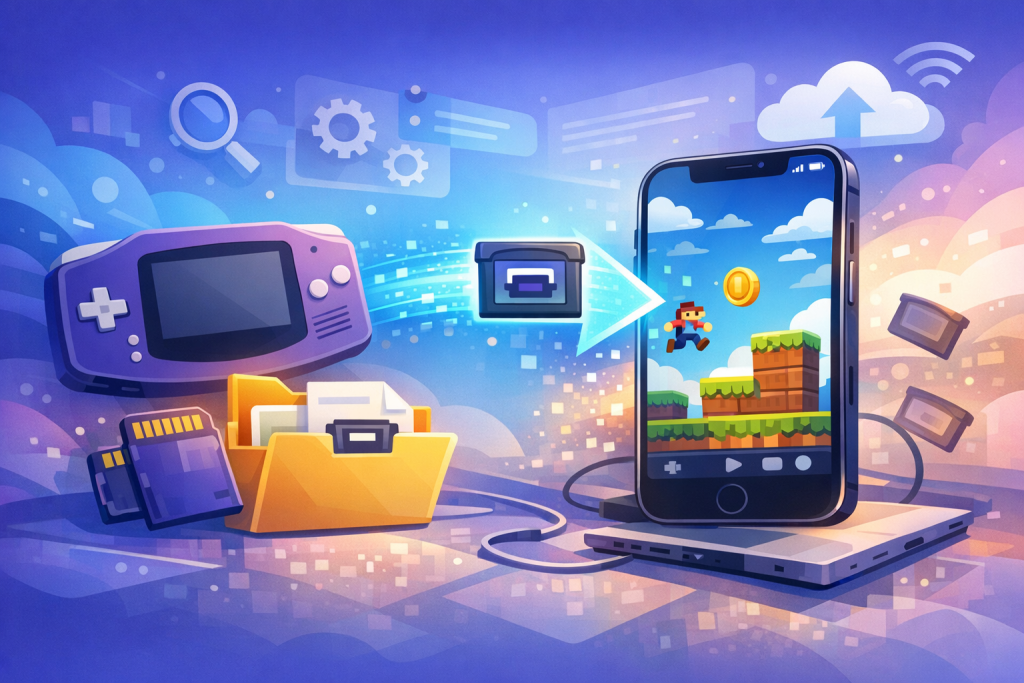
To import GBA ROMs into an iPhone emulator, install a supported emulator (Delta, RetroArch, Provenance, or Eclipse) from the App Store or AltStore, save your legally-owned .gba ROM file to the iOS Files app or iCloud Drive, then open the emulator’s library screen, tap the “+” or “Import” button, and select the ROM. The game will appear instantly and is ready to play.
Since the April 2024 update to Apple’s App Store guidelines that officially permits retro game console emulators, the process has become far simpler than the sideloading workarounds that defined the iOS emulation scene from 2014 to 2023. Delta, developed by Riley Testut, became the first widely available emulator on the App Store on April 17, 2024, and other emulators including PPSSPP, Provenance, and RetroArch have followed. The core ROM import workflow, however, remains conceptually similar across all of them: get the file onto your iPhone‘s local or cloud storage, then point the emulator at it.
This guide walks through every supported method — Files app, iCloud Drive, AirDrop, direct Safari download, browser-based ROM hosts, computer transfer via Finder, and third-party cloud services like Dropbox and Google Drive — and covers troubleshooting for the most common import errors. It also addresses BIOS requirements, save file migration from older emulators like GBA4iOS, and how to organize larger ROM libraries efficiently.
Legal and Ethical Considerations Before You Start
ROM files are copyrighted software, and downloading them for games you do not own is copyright infringement in most jurisdictions including the United States, United Kingdom, Canada, and the European Union. The legal path is to create ROM dumps from cartridges you personally own using hardware like the GB Operator, Joey-Jr, or an open-source GBxCart RW.
Nintendo has been particularly aggressive in pursuing emulation-related sites. In 2024, the company forced the shutdown of Yuzu (Switch emulator) and pressured several ROM hosting sites offline. Game Boy Advance ROMs typically range from 4 MB to 32 MB per game, making them small and quick to dump from physical cartridges. The cartridge dumping process takes approximately 30 seconds to 5 minutes per game depending on size, and most dumping tools produce standard .gba files compatible with every iOS emulator.
If you proceed with ROM acquisition outside of personal cartridge dumping, you assume legal risk. This article is informational; it does not endorse piracy and assumes you are working with legally acquired files.
Reading on a phone? Why not playing on it?
EMUverse turns your iPhone into a powerful GBA console with HD video, save states, and custom skins.
Install Now — Free
Choosing the Right iPhone Emulator for GBA
The four most reliable GBA emulators on iOS in 2024 are Delta (free, App Store), RetroArch (free, App Store, uses mGBA or VBA-M cores), Provenance (free, AltStore), and Eclipse (web-based, browser). Delta is the recommended starting point for most users because of its native App Store availability, controller support, and clean import workflow.
Feature Comparison
| Emulator | Install Source | Cost | Save States | Controller Support | iCloud Sync |
|---|---|---|---|---|---|
| Delta | App Store | Free | Yes (unlimited) | MFi, Xbox, PS4/5, Switch Pro | Yes |
| RetroArch | App Store | Free | Yes | Full MFi + Bluetooth | Manual |
| Provenance | AltStore/Sideload | Free | Yes | MFi, Bluetooth | Yes |
| Eclipse | Safari (PWA) | Free | Limited | Touch only reliable | No |
Why Delta Is the 2024 Default
Delta launched on the App Store on April 17, 2024, and crossed 10 million downloads within its first week. It supports NES, SNES, Game Boy, Game Boy Color, Game Boy Advance, Nintendo 64, and Nintendo DS. Its GBA core is based on a port of Visual Boy Advance-M, providing high compatibility with the official GBA library of approximately 1,538 commercially released titles.
Method 1: Importing GBA ROMs via the Files App (Recommended)
The Files app method works with every modern iOS emulator and is the most reliable approach. Place the .gba ROM in any Files app location (On My iPhone, iCloud Drive, or a connected cloud service), open Delta or your chosen emulator, tap the “+” button in the upper-right corner of the Games tab, navigate to the file, and tap it once. Import takes under two seconds for typical GBA ROMs.
Step-by-Step for Delta
- Install Delta from the App Store (search “Delta – Game Emulator” by Riley Testut).
- Open the Files app and confirm your .gba ROM is saved in an accessible location such as “On My iPhone > Downloads” or “iCloud Drive”.
- Launch Delta and tap the Games tab at the bottom of the screen.
- Tap the “+” icon in the top-right corner.
- Choose “Import Game” — this opens the iOS document picker.
- Browse to and tap your .gba file. Multiple files can be selected by long-pressing.
- Delta will return to the Games tab with the new title displayed, complete with cover art if available from its database.
Handling Compressed ROMs (.zip and .7z)
Many ROM archives arrive as .zip files. iOS 13 and later includes native ZIP extraction: long-press the .zip in the Files app and select “Uncompress”. This produces a folder containing the raw .gba file, which you can then import normally. RetroArch can read inside ZIP archives directly, but Delta requires the extracted .gba file. The .7z format requires a third-party app like iZip or Documents by Readdle, both free on the App Store.
Method 2: Importing via iCloud Drive
iCloud Drive is the simplest method when you start with the ROM on a Mac or PC. Drop the .gba file into any iCloud Drive folder on your computer, wait 10–60 seconds for sync depending on file size and connection speed, then use the Files app on your iPhone to navigate to that folder and import via your emulator’s “+” button.
Delta also offers native iCloud sync for game saves and save states, which is independent of ROM storage. Enable it under Settings > Syncing > iCloud. This means a single save file works across your iPhone, iPad, and any other iCloud-linked iOS device running Delta — useful if you start Pokémon Emerald on your iPhone during commute and continue on an iPad at home.
iCloud Drive Storage Considerations
The free iCloud tier offers 5 GB. A typical GBA library of 100 games consumes approximately 800 MB to 1.5 GB depending on average ROM size, so the free tier accommodates most collections. The 50 GB tier ($0.99/month in the US) provides ample headroom for combined GBA, GBC, and DS libraries.
Method 3: AirDrop from Mac or Another iOS Device
AirDrop offers the fastest local transfer. On a Mac with the ROM file visible in Finder, right-click the .gba file, choose Share > AirDrop, and select your iPhone. On the iPhone, accept the file and choose “Open in Delta” (or your preferred emulator) from the Share Sheet. This bypasses the Files app entirely and imports directly.
Transfer speeds via AirDrop typically reach 40–60 Mbps in optimal conditions, meaning a 16 MB GBA ROM transfers in under one second. This method works equally well from one iPhone to another, useful when sharing a personally-dumped backup between household devices.
Method 4: Direct Download via Safari
Safari on iOS 13 and later includes a fully functional download manager. When you tap a direct link to a .gba or .zip file, Safari displays a download confirmation dialog. Accept it, then access the file from the Downloads icon (the small arrow in Safari’s address bar) or via Files > On My iPhone > Downloads.
Direct Import from Safari to Delta
After download completion, tap the file in the Downloads list. iOS presents a preview screen with a Share button in the top-right corner. Tap Share, scroll the action sheet, and select Delta. The emulator opens and adds the ROM to your library automatically — no Files app navigation required.
Method 5: Computer Transfer via Finder (macOS) or iTunes (Windows)
Connect your iPhone via USB-C or Lightning cable. On macOS Catalina and later, open Finder, select your iPhone in the sidebar, then click the Files tab. Compatible emulators appear as expandable rows. Drag .gba files directly onto the Delta or RetroArch row, and the files transfer to the emulator’s sandboxed Documents folder. RetroArch in particular benefits from this method because it can scan its directory recursively for new ROMs.
On Windows, iTunes (for macOS versions prior to Catalina, and Windows) provides equivalent functionality under the File Sharing section of the device summary. Apple has phased out iTunes on Mac but the Windows version remains available as of December 2024.
Method 6: Cloud Services (Dropbox, Google Drive, OneDrive, Mega)
All major cloud storage apps integrate with the iOS Files app as “Locations” once installed and signed in. After enabling Dropbox or Google Drive in Files > Browse > Edit > Locations, your cloud files appear alongside iCloud Drive. From Delta’s import dialog, navigate into Dropbox or Drive, tap the .gba file, and iOS handles the download and import in a single action.
Mega is particularly popular for retro ROM hosting due to its generous 20 GB free tier and end-to-end encryption, though direct streaming into emulators can occasionally fail; downloading to local storage first is more reliable.
Method 7: Using AltStore and Sideloaded Emulators
Before April 2024, sideloading was the only route for GBA emulation on iOS. AltStore, also created by Riley Testut, remains relevant for emulators not on the App Store such as Provenance and PPSSPP Gold. Install AltStore Classic or AltStore PAL (EU only, under the Digital Markets Act), refresh apps every 7 days for free Apple Developer accounts, then install Provenance via its AltSource URL.
Provenance’s import workflow uses its built-in web server. Enable it in Settings, navigate to the displayed IP address (e.g., http://192.168.1.105) from a computer on the same Wi-Fi network, and drag-drop ROMs into the browser window. This is the fastest method for importing 50+ ROMs simultaneously.
BIOS Files: When You Need Them and When You Don’t
Delta and most modern GBA emulators include a high-level emulation (HLE) BIOS that handles the GBA’s boot sequence without requiring the original Nintendo BIOS file. For maximum accuracy and compatibility with a small number of edge-case titles (notably some homebrew and certain commercial games like the Japanese version of Sennen Kazoku), the official GBA BIOS (typically named gba_bios.bin, 16 KB, MD5 hash a860e8c0b6d573d191e4ec7db1b1e4f6) can be imported.
To add a BIOS in Delta, open Settings > Cores > Game Boy Advance and tap the BIOS field. The file picker accepts a .bin file from the Files app. RetroArch stores BIOS files in the /system/ folder of its sandboxed directory, accessible via Finder file sharing.
Organizing Larger ROM Libraries
Once your library exceeds 20–30 titles, organization becomes essential. Delta supports custom artwork (long-press a game > Change Artwork) and game collections through tagging. For collectors importing the entire commercial GBA library of approximately 1,538 titles, the following structure works well in iCloud Drive prior to import:
- /GBA/USA/ — North American releases (typically with “(USA)” in filename per No-Intro naming convention)
- /GBA/EUR/ — European multi-language releases
- /GBA/JPN/ — Japan-exclusive titles
- /GBA/Hacks/ — Fan translations and ROM hacks (e.g., Pokémon Radical Red, Mother 3 English patch)
Naming files according to the No-Intro convention (e.g., “Pokemon – Emerald Version (USA, Europe).gba”) ensures emulator art databases recognize the game and download box art automatically.
Save Files and Migration from GBA4iOS
Users migrating from the legacy GBA4iOS app (last functional sideload around 2019) can preserve their save data. GBA4iOS used .sav files alongside each ROM. Export these to a Mac or PC via tools like iMazing or 3uTools, then import them into Delta by long-pressing the corresponding game in Delta’s library and choosing “Import Save File”.
Save state files (.svs in Delta, .state in RetroArch) are not cross-compatible between emulators because each captures the internal CPU state of a different emulation core. Battery save files (.sav) are universally compatible — they represent the actual GBA cartridge SRAM contents.
Common Import Errors and Fixes
“Unsupported File Type”
This usually indicates the file is still inside a .zip archive or has the wrong extension. Verify the file ends in .gba (not .gba.zip or .GBA — case sensitivity occasionally matters). If the file was renamed from .bin or another format, check the actual file header: a valid GBA ROM begins with specific Nintendo boot logo data at offset 0x004.
Game Imports but Crashes on Launch
Likely causes: a corrupt or incomplete download (re-download and verify file size against known good values), an unsupported ROM hack requiring a specific patched base ROM, or memory expansion requirements for hacks like Pokémon Unbound that need 32 MB ROM support. Delta supports 32 MB ROMs but some lightweight emulators do not.
“File Already Exists” During Import
Delta de-duplicates based on ROM checksum. If you previously imported the same game, the new import is silently ignored. Delete the existing entry first (long-press > Delete) if you want to re-import.
Import Button Greyed Out
This occurs in RetroArch when no GBA core is installed. Open RetroArch > Load Core > Download Core, and select mGBA or VBA Next. After core installation, return to Load Content to import your ROM.
Controller Setup After Import
Once ROMs are imported, controller configuration takes priority. Delta supports MFi controllers automatically and added Xbox Series X/S, PlayStation 5 DualSense, and Nintendo Switch Pro Controller support in iOS 16 and later via standard Bluetooth pairing. Open iPhone Settings > Bluetooth, pair the controller, then launch any game in Delta — button mapping is automatic for these three controllers and customizable for others under Delta Settings > Controller Skins and Controllers.
Backbone One, GameSir X2, and Razer Kishi physical controllers attach directly to the iPhone via Lightning or USB-C and are recognized instantly with no pairing required, making them the most popular hardware choice for serious GBA emulation on the go.
Performance Expectations on Modern iPhones
The GBA, released in 2001, runs on a 16.78 MHz ARM7TDMI CPU — vastly less powerful than even the iPhone 6’s A8 chip from 2014. Every iPhone supported by iOS 16 or later (iPhone 8 and newer) runs every GBA title at full speed with no frame drops or audio stutter. Battery impact is minimal: approximately 8–12% per hour of continuous play on an iPhone 14 with the screen at moderate brightness, comparable to streaming video.
Frequently Asked Questions
Is it legal to import GBA ROMs into an iPhone emulator?
The emulator itself is legal — Delta and others are explicitly permitted under Apple’s April 2024 App Store guideline update. The legality of the ROM file depends on its source. Dumping ROMs from cartridges you own for personal backup is legal in some jurisdictions (and a grey area in others), while downloading ROMs from the internet for games you do not own constitutes copyright infringement in the US, UK, EU, Canada, Australia, and most other countries. Always check local copyright law and consider hardware dumpers like the GB Operator for legally sound backups.
Why doesn’t Delta show my ROM after import?
Check three things in order. First, confirm the file extension is exactly “.gba” — Delta does not recognize .zip files for GBA imports even though RetroArch does. Second, ensure the file is not zero bytes or corrupted by checking its size in the Files app (legitimate GBA ROMs are between 4 MB and 32 MB). Third, restart Delta entirely by swiping it from the app switcher — occasional database refresh issues are resolved by a relaunch. If problems persist, delete and re-import the file.
Can I import GBA ROMs without a computer?
Yes. Safari can download .gba and .zip files directly to your iPhone, and the Files app can extract ZIP archives natively. You can also receive files via AirDrop from another iPhone or iPad, or download from cloud services like Dropbox, Google Drive, and Mega through their iOS apps. The entire workflow from acquisition to playing requires no desktop computer, though a computer makes bulk imports of large libraries significantly faster.
Does Delta support save files from my original GBA cartridge?
Yes, if you can extract the save data. Hardware tools like the GB Operator and Joey-Jr can read both the ROM and the battery-backed SRAM save from your cartridge, producing a .sav file. Long-press the corresponding game in Delta’s library and select “Import Save File” to load it. The save will work exactly as it did on your original Game Boy Advance, with your party, items, badges, and play time intact in games like Pokémon Ruby or Fire Red.
What’s the maximum ROM size Delta supports for GBA?
Delta supports the full 32 MB (256 Mbit) maximum size defined by the official GBA cartridge specification. This covers every commercial GBA release, the largest of which were titles like Mother 3 (32 MB) and several Pokémon entries. Most ROM hacks also fit within this limit, though a small number of expanded hacks targeting flash cart hardware exceed 32 MB and may not load correctly. For oversized hacks, RetroArch with the mGBA core sometimes offers better compatibility.
Can I sync GBA save states between iPhone and iPad?
Yes, Delta includes built-in iCloud sync for save states and battery saves. Enable it under Delta Settings > Syncing > iCloud on each device signed into the same Apple ID. Save states sync within 30–60 seconds of being created, allowing seamless continuation between devices. ROMs themselves do not sync automatically — you must import the same ROM file on each device, but once imported, all save data and save states stay synchronized indefinitely as long as iCloud sync remains enabled.
Do I need to jailbreak my iPhone to use GBA emulators?
No. The April 2024 App Store policy change made jailbreaking obsolete for emulation. Delta, RetroArch, PPSSPP, and other major emulators are now available directly from the App Store with no sideloading or jailbreak required. AltStore provides an alternative for emulators not on the App Store, such as Provenance, and requires only a free Apple ID — not a jailbreak. Jailbreaking, which carries security risks and voids your warranty, is no longer recommended for emulation purposes.
How many GBA ROMs can I store on my iPhone?
Storage is essentially unlimited within your iPhone’s free space. The average GBA ROM is approximately 8 MB, meaning 1 GB of storage holds roughly 125 games. A complete No-Intro GBA collection of 1,538 commercial titles consumes approximately 12 GB. On a 128 GB iPhone with 60 GB free, you can comfortably store the entire commercial library plus thousands of ROM hacks and still have room for photos, music, and other apps.
Ready to start playing?
Download EMUverse on the App Store and bring your retro library back to life.
Download EMUverse