How to Play Game Boy and Game Boy Color Games on iPhone: The Complete 2024 Guide
The Short Answer: Playing Game Boy Games on iPhone in 2024
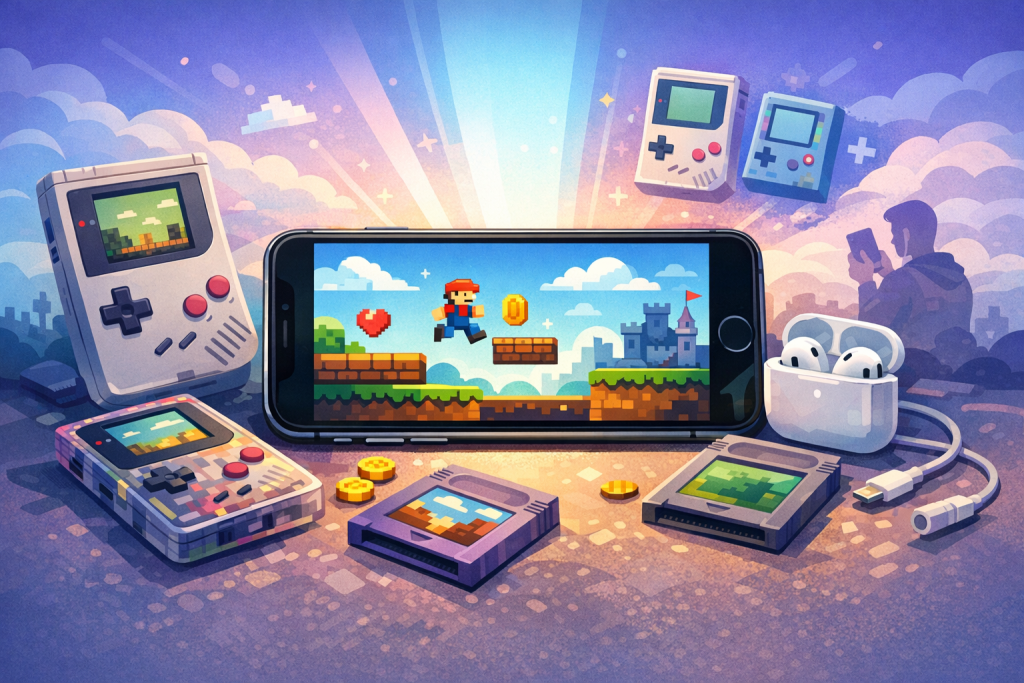
Since April 2024, Apple permits retro game emulators on the App Store. The easiest way to play Game Boy (DMG) and Game Boy Color (CGB) games on iPhone is to install Delta, RetroArch, or Provenance directly from the App Store, then import legally obtained ROM files via the Files app, AirDrop, or iCloud Drive. No jailbreak, sideloading service, or developer account is required.
This shift followed Apple’s April 5, 2024 update to App Store Review Guideline 4.7, which explicitly allows “retro game console emulator apps.” Delta launched on the App Store on April 17, 2024, became the #1 free app within 24 hours, and remains the most popular option for Game Boy and Game Boy Color emulation on iOS. RetroArch followed in July 2024, and dozens of additional emulators have since appeared.
Which Emulators Support Game Boy and Game Boy Color on iPhone?
The three best free emulators for Game Boy and Game Boy Color on iPhone are Delta, RetroArch, and Provenance. Delta offers the simplest interface and excellent default settings, RetroArch provides the deepest customization with multiple emulation cores, and Provenance supports the widest range of consoles in a single app. All three are available without sideloading.
Delta
Developed by Riley Testut, Delta supports NES, SNES, Nintendo 64, Game Boy, Game Boy Color, Game Boy Advance, and DS. For Game Boy and GBC titles it uses a derivative of the Gambatte core, widely regarded as the most accurate Game Boy emulator available. Delta features iCloud save syncing, controller skin customization, hold-button toggles, fast-forward, and cheat code support. It is completely free with no ads, funded by an optional Patreon-supported companion app called AltStore.
RetroArch
RetroArch is a frontend that bundles multiple emulation cores, including Gambatte, SameBoy, and TGB Dual for Game Boy/GBC. It is more technical, with an overwhelming menu system, but it offers shaders, rewind, netplay, and per-game configuration. RetroArch is the best choice if you want pixel-perfect CRT shaders or want to play the same library across iPhone, Android, and desktop.
Provenance
Provenance EMU supports more than 25 systems including DMG, CGB, GBA, NES, SNES, Genesis, PSX, and even Sega Saturn. It was previously only available through sideloading but reached the App Store in 2024. Its Game Boy core is based on Gambatte, identical in accuracy to Delta.
Other notable options
- GBA4iOS — Testut’s original 2014 emulator, now deprecated in favor of Delta.
- RIley and Folium — paid alternatives ($4.99–$9.99) with native iOS design.
- SameBoy — available as a RetroArch core, recreating Game Boy hardware quirks like the Super Game Boy border palette and link cable behavior.
Reading on a phone? Why not playing on it?
EMUverse turns your iPhone into a powerful GBA console with HD video, save states, and custom skins.
Install Now — Free
Step-by-Step: Installing Delta on Your iPhone
To install Delta, open the App Store on iOS 14 or later, search “Delta – Game Emulator,” tap Get, and authenticate with Face ID or Touch ID. The download is approximately 65 MB. Once installed, Delta requires no account creation, no in-app purchases, and no permissions beyond storage access for importing ROMs.
- Open the App Store and search for Delta – Game Emulator (developer: Riley Testut).
- Confirm the developer name matches to avoid copycat apps that have appeared since the policy change.
- Tap Get, then authorize the download.
- Launch Delta. On first run you will see an empty game library divided by console.
- Tap the + icon in the upper right corner to begin importing games.
- (Optional) Open Settings inside Delta and enable iCloud Sync to keep saves and ROMs available across devices.
Where to Get Game Boy ROMs Legally
Under United States copyright law, you may only emulate Game Boy and Game Boy Color games you own a physical or licensed digital copy of. The legal method is to dump the ROM from your own cartridge using a device like the GB Operator, Joey-Jr, or INLretro Dumper-Programmer, which cost between $50 and $120. Downloading ROMs from the internet, even for games you own, is technically copyright infringement in most jurisdictions.
Dumping your own cartridges
The GB Operator by Epilogue ($55) is the most user-friendly option. Plug it into a Mac or PC via USB-C, insert your cartridge, open the Playback companion app, and click “Save Game ROM.” A 4 MB Game Boy Color cartridge dumps in under 30 seconds. The resulting .gb or .gbc file can then be transferred to your iPhone. The same device backs up battery-powered save files from cartridges with internal SRAM.
Licensed digital alternatives
Nintendo offers a curated selection of Game Boy and Game Boy Color titles through Nintendo Switch Online‘s expansion. While these cannot be transferred to iPhone, they are the only fully licensed way to play classics like Tetris, The Legend of Zelda: Link’s Awakening DX, and Pokémon Trading Card Game on modern hardware. For iOS-exclusive legal play, consider Nintendo’s official Game Boy releases (none exist on iOS as of 2024) or homebrew titles distributed under permissive licenses.
Public domain and homebrew
Hundreds of Game Boy homebrew games are freely distributed by their creators. Sites like itch.io host indie GB and GBC releases including Deadeus, Dangan GB, and Out of Gas. These ROMs are 100% legal to download and play.
How to Transfer ROMs to Your iPhone
The four reliable methods to get ROM files onto your iPhone are AirDrop from a Mac, iCloud Drive sync, the Files app via USB or external storage, and direct download in Safari. Delta and RetroArch both accept .gb, .gbc, and .zip-compressed files, with Delta automatically decompressing archives during import.
Method 1: AirDrop from Mac
On macOS, right-click the ROM file, choose Share → AirDrop, and select your iPhone. Tap “Open with Delta” when prompted on iOS. The ROM appears immediately in the appropriate console tab.
Method 2: iCloud Drive
Place ROM files in iCloud Drive on any device. On iPhone, open the Files app, navigate to the ROM, long-press it, and choose Share → Delta. This method also lets you keep a personal cloud library accessible across iPhone, iPad, and Mac.
Method 3: Files app and external drives
iOS 13 and later support external USB-C storage and SD cards on iPhone 15 Pro models. Plug a drive in, open Files, browse to the ROM, and share to Delta. This is the fastest method for bulk transfers of large libraries.
Method 4: Direct Safari download
If you visit a homebrew site in Safari and tap a .gb file, iOS will offer to download it. Open the Downloads folder in Files and share the file to Delta. For .zip archives, Safari will download the archive; tap it in Files to expand it before importing.
Configuring Controls: Touchscreen, MFi, and Bluetooth Controllers
Delta and RetroArch provide on-screen touch controls by default, but both support physical controllers via Bluetooth. Recommended controllers include the Backbone One (Lightning or USB-C, $99), 8BitDo SN30 Pro ($45), Sony DualSense, Xbox Series X|S controller, and Nintendo Switch Pro Controller. All four major options pair through iOS Settings → Bluetooth and are recognized natively by Delta without additional configuration.
Touch control customization in Delta
Delta supports custom skins downloadable from delta-skins.com and community repositories. Skins can replicate the original Game Boy gray casing, the Game Boy Pocket, the Game Boy Color in any of its six original colors (Berry, Grape, Kiwi, Dandelion, Teal, Atomic Purple), or modern minimalist layouts. Install a skin by tapping the gear icon next to a console and selecting “Import Skin.”
Mapping a controller
With a Bluetooth controller connected, open Delta → Settings → Controllers → External Controller. You can remap any input, assign menu toggles to combinations like L3+R3, and create per-console profiles so Game Boy uses different mappings than Nintendo 64.
Hold buttons and fast-forward
Hold-button assignments let you keep a direction or button pressed automatically — useful for grinding in Pokémon or holding B to run. Fast-forward (up to 8x) is essential for older RPGs with slow text speed.
Saving, Save States, and iCloud Sync
Delta supports both in-game battery saves (the original cartridge save system) and unlimited save states with screenshots and timestamps. Enabling iCloud Sync in Settings keeps your entire library, save files, and save states synchronized across all iOS devices signed into the same Apple ID. Sync is end-to-end within Apple’s iCloud infrastructure.
| Save Type | How It Works | Best For |
|---|---|---|
| Battery Save (.sav) | Writes to the in-game save menu, identical to original cartridge behavior | Long-term progress, transferring saves to/from real hardware |
| Save State | Snapshot of full system memory at any moment | Boss fights, RNG manipulation, mid-level checkpoints |
| Auto Save State | Automatically created on quit, restored on resume | Quick session resumption |
Battery saves from a dumped cartridge can be imported alongside the ROM by placing the .sav file in the same directory with the same base name. This lets you continue a Pokémon Crystal playthrough from your original 1999 cartridge on your iPhone in 2024.
Game Boy vs. Game Boy Color: What’s the Difference for Emulation?
The original Game Boy (1989) uses a 4.19 MHz Sharp LR35902 CPU with a 160×144 monochrome screen displaying four shades of gray. The Game Boy Color (1998) doubles the clock speed to 8.38 MHz and adds a 32,768-color palette with up to 56 colors on screen simultaneously. Most emulators handle both systems with a single core, but display options differ significantly.
Color palettes for original Game Boy games
When you load a monochrome .gb file in Delta, you can choose from several palettes that simulate how the original game looked on different hardware: the green-tinted DMG display, the yellow Game Boy Pocket, the backlit Game Boy Light, or one of the 12 palettes the Game Boy Color applied to legacy games when certain button combinations were held during boot. Tetris in red, Super Mario Land in orange, and Donkey Kong in vivid color are all replicable.
Super Game Boy enhancements
About 70 Game Boy games included Super Game Boy enhancements — custom borders and 4-color palettes that activated when played through the SNES peripheral. Delta does not currently emulate SGB borders, but RetroArch’s SameBoy core does, providing the most authentic experience for games like Donkey Kong (1994) and The Legend of Zelda: Link’s Awakening.
Common Problems and Troubleshooting
The most frequent issues iPhone users encounter are ROMs failing to import, Bluetooth controllers disconnecting in standby, saves not syncing to iCloud, and audio crackling during fast-forward. Most can be resolved by ensuring iOS is updated to 16.4 or later, confirming ROM files use the correct extension, and toggling iCloud sync off and on.
“This file type is not supported”
Delta accepts .gb, .gbc, .zip, and .7z. Files ending in .rom or with no extension must be renamed. Multi-ROM archives must contain only one game per ZIP for automatic import.
Controller drops connection
iOS aggressively disconnects Bluetooth peripherals to save battery. In Settings → Bluetooth, tap the (i) next to your controller and ensure “Connect Automatically” is on. The Backbone One and other Lightning/USB-C controllers avoid this issue entirely.
iCloud saves not appearing on second device
Verify both devices use the same Apple ID, are signed into iCloud Drive, and have Delta listed under Settings → Apple ID → iCloud → Apps Using iCloud. Initial sync can take 5–10 minutes for large libraries.
Game runs too fast or too slow
Check that fast-forward isn’t accidentally toggled. In Delta, the default is hold-to-fast-forward, but this can be changed to toggle in Settings. Pokémon games are particularly sensitive — a “fast” Pokémon Red is almost always fast-forward being enabled.
Advanced Tips: Cheats, Link Cable, and Pokémon Trading
Delta supports Game Genie and GameShark cheat codes natively. Open a game, tap the menu, choose Cheat Codes, and enter codes in their original format. RetroArch additionally supports link cable emulation between two instances and netplay over the internet, enabling Pokémon trading between Red, Blue, Yellow, Gold, Silver, and Crystal.
Using Game Genie codes
Game Genie codes are nine-character strings like “00A-17B-E66” that modify ROM data. They were originally sold for the physical Game Boy in the early 1990s. Delta accepts these directly. GameShark codes (eight characters, e.g., “01FF16D1”) modify RAM and are useful for unlimited money, infinite HP, or rare candy farming.
Pokémon trading via link cable emulation
To trade Pokémon between two emulated games, use RetroArch’s TGB Dual core or connect two devices running compatible emulators over Wi-Fi netplay. This enables completing the Pokédex without a second cartridge, evolving trade-only Pokémon like Machamp, Golem, Alakazam, and Gengar, and accessing version-exclusive Pokémon.
Performance optimization
Game Boy and Game Boy Color games require less than 1% of an iPhone’s processing power. Even the iPhone 6s (the oldest device supported by current Delta versions) runs every GB and GBC game at full speed. Battery drain during play is approximately 8–12% per hour, comparable to reading an e-book.
Frequently Asked Questions
Is emulating Game Boy games on iPhone legal?
Emulator software itself is legal in the United States, confirmed by the 2000 Sony v. Connectix ruling. The legality issue concerns ROM files. You may legally play ROMs of games you own, ideally by dumping the cartridges yourself with hardware like the GB Operator. Downloading ROMs from the internet, even for games you own physically, technically violates copyright law, though enforcement against individual users is essentially nonexistent.
Do I need to jailbreak my iPhone to play Game Boy games?
No. Since April 2024, Apple has allowed retro game emulators on the App Store. Delta, RetroArch, Provenance, and several others are available directly from the App Store with no jailbreak, no developer account, no AltStore, and no sideloading required. Older guides recommending TrollStore or AltStore are outdated for basic Game Boy and Game Boy Color play.
What is the best free Game Boy emulator for iPhone?
Delta is the best free option for most users because of its polished interface, accurate Gambatte-based emulation, iCloud save sync, and ease of importing ROMs. RetroArch is better for advanced users who want shaders, rewind functionality, or multi-system support in one consistent frontend. Both are completely free with no ads or in-app purchases.
Can I play Game Boy Advance and DS games with the same emulator?
Yes. Delta supports NES, SNES, Nintendo 64, Game Boy, Game Boy Color, Game Boy Advance, and Nintendo DS in a single app. Provenance supports an even wider range including PlayStation 1, Sega Genesis, and Atari systems. RetroArch supports virtually every retro console through its core library. There is no need to install separate apps for each Nintendo handheld.
Will my saved games transfer between iPhone and a real Game Boy?
Yes, with the right hardware. Battery saves dumped from a real cartridge using a GB Operator or similar device are standard .sav files that Delta accepts directly. You can also write modified .sav files back to a physical cartridge, letting you play a Pokémon Crystal save on iPhone during your commute and continue on real hardware at home. Save states (snapshots) are emulator-specific and do not transfer to hardware.
How much storage do Game Boy ROMs take on iPhone?
Game Boy ROMs are extremely small. Original Game Boy games range from 32 KB to 1 MB; Game Boy Color games range from 256 KB to 8 MB. A complete library of every commercially released Game Boy and Game Boy Color game — over 1,000 titles combined — totals approximately 2.5 GB. This is less storage than a single 4K video clip and well within the capacity of even base-model iPhones.
Can I use a physical controller with Delta on iPhone?
Yes. Delta supports any MFi-certified controller, including the Backbone One, GameSir X2, Razer Kishi, 8BitDo SN30 Pro, Sony DualShock 4, DualSense, Xbox Wireless Controller (model 1914 or later), and Nintendo Switch Joy-Cons and Pro Controller. Pair the controller via iOS Settings → Bluetooth, then it works automatically in Delta. Button mapping can be customized per console in Delta’s settings.
Does Apple plan to remove emulators from the App Store?
There is no indication of any policy reversal. Apple’s April 2024 guideline change came in response to regulatory pressure, particularly the EU’s Digital Markets Act. Removing emulators would invite renewed antitrust scrutiny. Individual apps have been pulled briefly for hosting copyrighted content (such as iGBA in April 2024), but the category itself remains permitted. Sideloading via AltStore PAL in the EU provides additional insurance against any future policy changes.
Ready to start playing?
Download EMUverse on the App Store and bring your retro library back to life.
Download EMUverse